# Web Clipper
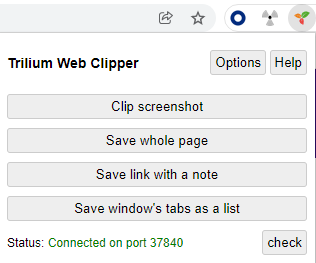
Trilium Web Clipper is a web browser extension which allows user to clip text, screenshots, whole pages and short notes and save them directly to Trilium Notes.
## Supported browsers
Trilium Web Clipper officially supports the following web browsers:
* Mozilla Firefox, using Manifest v2.
* Google Chrome, using Manifest v3. Theoretically the extension should work on other Chromium-based browsers as well, but they are not officially supported.
## Obtaining the extension
> [!WARNING]
> The extension is currently under development. A preview with unsigned extensions is available on [GitHub Actions](https://github.com/TriliumNext/Trilium/actions/runs/21318809414).
>
> We have already submitted the extension to both Chrome and Firefox web stores, but they are pending validation.
## Functionality
* select text and clip it with the right-click context menu
* click on an image or link and save it through context menu
* save whole page from the popup or context menu
* save screenshot (with crop tool) from either popup or context menu
* create short text note from popup
## Location of clippings
Trilium will save these clippings as a new child note under a "clipper inbox" note.
By default, that's the [day note](../Advanced%20Usage/Advanced%20Showcases/Day%20Notes.md) but you can override that by setting the [label](../Advanced%20Usage/Attributes.md) `clipperInbox`, on any other note.
If there's multiple clippings from the same page (and on the same day), then they will be added to the same note.
## Keyboard shortcuts
Keyboard shortcuts are available for most functions:
* Save selected text: Ctrl+Shift+S (Mac: ⌘+⇧+S)
* Save whole page: Alt+Shift+S (Mac: ⌥+⇧+S)
* Save screenshot: Ctrl+Shift+E (Mac: ⌘+⇧+E)
To set custom shortcuts, follow the directions for your browser.
* **Firefox**: `about:addons` → Gear icon ⚙️ → Manage extension shortcuts
* **Chrome**: `chrome://extensions/shortcuts`
> [!NOTE]
> On Firefox, the default shortcuts interfere with some browser features. As such, the keyboard combinations will not trigger the Web Clipper action. To fix this, simply change the keyboard shortcut to something that works. The defaults will be adjusted in future versions.
## Configuration
The extension needs to connect to a running Trilium instance. By default, it scans a port range on the local computer to find a desktop Trilium instance.
It's also possible to configure the [server](Server%20Installation.md) address if you don't run the desktop application, or want it to work without the desktop application running.
## Testing development versions
Development versions are version pre-release versions, generally meant for testing purposes. These are not available in the Google or Firefox web stores, but can be downloaded from either:
* [GitHub Releases](https://github.com/TriliumNext/Trilium/releases) by looking for releases starting with _Web Clipper._
* Artifacts in GitHub Actions, by looking for the [_Deploy web clipper extension_ workflow](https://github.com/TriliumNext/Trilium/actions/workflows/web-clipper.yml). Once a workflow run is selected, the ZIP files are available in the _Artifacts_ section, under the name `web-clipper-extension`.
### For Chrome
1. Download `trilium-web-clipper-[x.y.z]-chrome.zip`.
2. Extract the archive.
3. In Chrome, navigate to `chrome://extensions/`
4. Toggle _Developer Mode_ in top-right of the page.
5. Press the _Load unpacked_ button near the header.
6. Point to the extracted directory from step (2).
### For Firefox
> [!WARNING]
> Firefox prevents installation of unsigned packages in the “retail” version. To be able to install extensions from disk, consider using _Firefox Developer Edition_ or a non-branded version of Firefox (e.g. _GNU IceCat_).
>
> One time, go to `about:config` and change `xpinstall.signatures.required` to `false`.
1. Navigate to `about:addons`.
2. Select _Extensions_ in the left-side navigation.
3. Press the _Gear_ icon on the right of the _Manage Your Extensions_ title.
4. Select _Install Add-on From File…_
5. Point it to `trilium-web-clipper-[x.y.z]-firefox.zip`.
6. Press the _Add_ button to confirm.
## Credits
Some parts of the code are based on the [Joplin Notes browser extension](https://github.com/laurent22/joplin/tree/master/Clipper).